wikiHow is a “wiki,” similar to Wikipedia, which means that many of our articles are co-written by multiple authors. To create this article, 16 people, some anonymous, worked to edit and improve it over time.
wikiHow marks an article as reader-approved once it receives enough positive feedback. In this case, 92% of readers who voted found the article helpful, earning it our reader-approved status.
This article has been viewed 36,996 times.
Learn more...
Congratulations on your new cashier job at Kmart! If you've never operated a cash register before, learning these procedures might seem overwhelming at first. Don't worry, we're here to help and you'll get the hang of it in no time. In this article, we'll give you a crash course in operating some of the most important and commonly-used cash register functions.
Steps
Basic Functions
-
1Log in to your register. Type in your clock number (usually one to four digits long), type a slash /, and then type your secret number (usually two to four digits long). Then press OPERATOR. The cash drawer will pop open and a receipt will print out. Save the receipt.
-
2Lock your register. If you need to step away from the register at any time, lock the register by pressing NO SALE, then OPERATOR.
- Locking your register prevents everyone except you and your managers from accessing the register, so it is very important that you make this a habit.
Advertisement -
3Unlock your register. Type in your secret number and then press OPERATOR.
-
4Close your register. Press OPERATOR twice in a row. The cash drawer will pop open and a receipt will print out. Save the receipt.
-
5Do a price check. Press PRICE CHECK and then scan the item or type the UPC. When you are done, press CLEAR.
- You can also do this with rewards cards.
- You don't need to be signed into your register to do this.
-
6Open your cash drawer without a sale. Press NO SALE, then ENTER.
- Don't forget to close the drawer and lock the register when you're done.


Beginning a Sale
-
1Ask for the customer's phone number or rewards card. If the customer isn't a rewards member, offer to enroll them (see Part 5: Enrolling a Customer for a Rewards Account) or skip this step.
- If the customer has a physical card or a bar code on their phone, simply scan it with the handheld scanner.
- If the customer uses their phone number or email address, touch "Loyalty" at the bottom of the screen, and then touch "Lookup/Enrollment". Type the phone number or email address, and then choose an account from the resulting list.
- Sometimes after selecting an account, a popup will appear telling the customer to make a selection on the PIN pad. The transaction can't proceed until the customer makes a selection.
-
2Ring up the customer's items. One by one, scan the items using the embedded scanner or the handheld scanner, depending on convenience.
- If you have to manually type in an item's barcode number (called a UPC), type the full number on the keypad and press ENTER. (This works any time you need to scan a product.)
- If you can't find a UPC anywhere, type the department number of the product and press DEPT. #. Your manager may have to enter his/her password at this point. Then type the price of the product (with no decimals) and press ENTER.
-
3Fix any mistakes. There are many problems that can happen while ringing items up. Here are the solutions for most of them:
- To void/remove the last item you've rung up, press VOID, then ENTER. Otherwise, press VOID, type the item's UPC number or scan it again, and then press ENTER.
- If a customer tells you a price is wrong, void the item and then press OVERRIDE. Scan the item again, and then type the correct price of the item (with no decimals). Press ENTER. Then, select the reason that you are overriding the price. Your manager may have to enter his/her password to let you do this.
- The override process is slightly different if you need to take a percent off. In this case, void the original item and press OVERRIDE. Type the percent that the item should be reduced (e.g. 50) and press the % OFF key. Scan the item again. Press ENTER when it asks you to confirm the original price. Then, select the reason you are overriding the price. Your manager may have to enter his/her password to let you do this.
- If you have to cancel an entire transaction, press VOID, then TOTAL. The register will say
VT TRANSACTION LIMIT CHECK. Press CLEAR. Your manager may have to enter his/her password to let you do this.


Coupons and Payment
-
1Press the TOTAL key. If your store is participating in a fundraiser, a popup for that will appear on the screen. Watch out! Once you scan any coupons or select any method of payment, you can't add or remove items from the list.
-
2If the customer has coupons, touch "Scan Coupons" on the screen. Otherwise, skip this step.
- Be sure to scan coupons in order of importance, because some cannot be combined.
- Make sure you're aware of the current coupon policy—some coupons are not accepted.
- If the coupons are being scanned properly, the register will say
COUPON SCANNED. Stick these coupons in your cash drawer. - If the coupons are not scannable, type the value of the coupon (with no decimals) and then press FOOD MFR COUPON, NON-FOOD MFR COUPON, or STORE COUPON, depending on the type of coupon it is. Then, select the product to which the coupon applies on the screen. Always place accepted coupons in your cash drawer.
- Press TOTAL again when you're done ringing up the coupons.
-
3Touch "Proceed to Checkout" on the screen. Select if the customer is using a Sears credit card.
-
4Determine how the customer will be paying. If the customer is using more than one method of payment, the list below is the order that different tender types must be accepted. If you do any of these in the wrong order, you may have to void the transaction. Be careful!
- Rewards points
- Store issued gift cards
- Miscellaneous tender
- SNAP/WIC cards
- Cash
- Checks or payment cards
-
5Ask if the customer wants to redeem points from their rewards account. If they don't, skip this step.
- If they do, type in the amount they want to redeem in the keypad (with no decimals) and then press SYW TENDER on the keypad twice (or, you can instead touch the SYW button and then OK on the screen).
- Unless you used the scanner to ring up the customer's account, the register will say
CUST MUST ENTER PRSL ID ON PIN PAD. If they are redeeming less than ten dollars, press CLEAR and type the last four digits of your employee ID number, and then touch "OK". If the customer is redeeming more than ten dollars, the customer must enter their personal ID on the PIN pad.
-
6Follow these steps if the customer is paying with a store-issued gift card. If they aren't, skip this step.
- If they are, press KMART CASH twice (or, you can instead touch the Gift Card button and then OK on the screen).
- Swipe the card in your card reader (above the keyboard), with the stripe facing towards you, right to left.
- If the gift card completely pays for the purchase, return it to the customer. Otherwise, throw it away and proceed with the next payment type.
-
7Follow these steps if the customer is paying in cash. If they aren't, skip this step.
- If they are, type the amount of cash they offer you (with no decimals). Then press CASH TENDER twice (or, you can instead touch the Cash button and then OK on the screen).
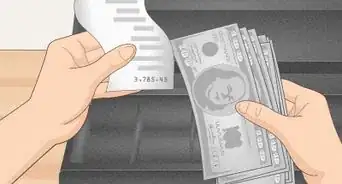
- Mark all bills with the counterfeit pen. Counterfeit one dollar bills are a real thing.
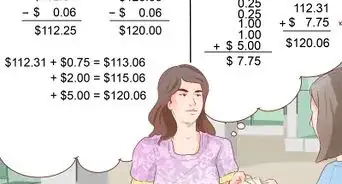
- The drawer will pop open and the register will display the amount of change to give to the customer.
-
8Follow these steps if the customer is paying with a card. If they aren't, skip this step.
- If they are, press EFT TENDER twice (or, you can instead touch the EFT button and then OK on the screen). The customer then has to enter their information on the PIN pad.
- If the customer has a credit card, tell them to press Cancel on the PIN pad when the PIN number prompt appears.
- If the customer tells you they made a mistake on the PIN pad, press CLEAR on your keypad. Press TOTAL and press EFT TENDER twice again.
- If a customer wants to put a certain amount on one card and the remaining balance on another, type the amount to put on the first card (with no decimals) before pressing EFT TENDER. When that card has finished processing, you can select EFT TENDER twice again to run the second card.
- If a customer is using a Canadian credit card in the U.S., the screen may prompt you to input more information from the customer's identification.
-
9Follow these steps if the customer is paying with a check. If they aren't, skip this step.
- If they are, press CHECK TENDER twice (or, you can instead touch the Check button and then OK on the screen). Select the check type on the screen.
- Insert the check into the check reader, face down, with the "Endorse Here" side at the top. If the customer provided a blank check, press 1 and then ENTER to print the total onto the check. If the customer filled the checkout, press 2 and then ENTER to bypass the printing.
- Some customers will be asked to provide driver's license information. Type their license number, press ENTER, type the two-letter state code for the license (e.g. Illinois is IL), ENTER, and then type the customer's date of birth on the keypad (do not type slashes or dashes). Then press ENTER.
- The register will automatically print a slip that the customer must sign. When the customer has signed, touch "Yes" on the screen and a second slip will print. Put the signed slip into the cash drawer. Then wait for the register to finish processing the check. Once it has, a pop-up will appear on the screen. Touch "OK" and then give the second slip and the check back to the customer. For some checks, the screen may prompt you to place the check in the cash drawer instead of returning it to the customer.
-
10If any of the payment methods fail, return the tender back to the customer and ask them to provide an alternate form of payment. If they cannot, call a manager to see if the transaction can be saved. If not, you may have to void the entire transaction.


Finishing a Sale
-
1Once the customer no longer owes any money, one of two things could happen.
- The receipt may automatically print along with some coupons.
- The customer will be asked to select how they'd like their receipt on the PIN pad. If this happens, only touch the "Print" button on the screen if the customer asks you to.
-
2Document any errors you knowingly made during the transaction.
- Press 8, then OPERATOR to print a copy of the receipt from the most recent transaction.
- On the back of the receipt, write a note explaining what happened. For example, if you accidentally valued a coupon at $5 instead of $3, write that down.
- Place the receipt in your cash drawer.


Enrolling a Customer for a Rewards Account
-
1Touch the "Loyalty" button at the bottom of the screen. Then touch "Lookup/Enrollment".
-
2Type the customer's email address in first. If the customer is not already a member, a new screen will appear and the customer will have to confirm that their email address is spelled correctly on the PIN pad.
-
3Type the customer's phone number in next. It isn't required, but it is the easiest way to look up a customer's account, so it's highly recommended. Once you're done, the customer will need to confirm that as well.
-
4Type in the customer's first name, last name, and ZIP code. Then, touch the "Cardless" button. If the customer is also a Kmart employee, touch "Non-Associate" to change it to "Associate".
-
5Touch "Enroll With Sale" if the customer is signing up as a part of their sale or "Enroll Without Sale" if the customer is signing up without purchasing anything.
-
6The customer will be prompted to create a personal ID or "PIN" number. Tell them that they will need to use it to redeem more than ten dollars off their account at a time and that they will need to type it in twice.
-
7If all goes well, the screen should close. If an error message appears, the phone number(s) or email address could be invalid.


Community Q&A
-
QuestionHow do I check a customer's Shop Your Way points if they don't have a card with them?
 Community AnswerAfter you have taken their phone number, their SYW account will appear on the screen. To check their points, press the "Price Check" key and type in the long SYW membership number on the screen. Press "enter." Their balance and available points should pop up.
 -
QuestionDoes the cash drawer close by itself?
 Community AnswerNo, you will need to push it back in. Don't forget to press "NO SALE + OPERATOR" to lock your register if your line is empty and you're leaving the register.
 -
QuestionHow is the Qty button on the register used?
 Community AnswerThis usually isn't used, as the policy is to ring up every item individually. Say someone were to buy 20 bags of chips, policy says you have to ring them individually instead of the same bag/qty button.
Warnings
- Even if a manager gives you their override password, DON'T USE IT unless they say so. Management has to approve every override when the register asks.⧼thumbs_response⧽
- Never use the register to buy items for yourself and never use your own rewards account when a customer is not a rewards member. Both actions are grounds for termination.⧼thumbs_response⧽
- Be sure to check any bills that don't appear authentic.⧼thumbs_response⧽
- Kmart balances coupons just like cash. So treat them like cash, and don't steal them, just like you wouldn't steal cash.⧼thumbs_response⧽
- You can't open your cash drawer in the middle of a transaction, so don't put anything in it that you think you may need later.⧼thumbs_response⧽
- Once the customer has rung up coupons or paid in any amount, you can't add or remove items without voiding the whole transaction. Watch out!⧼thumbs_response⧽
- Clearance items (especially consumables) may not be accurately priced in the database. To be sure, you can price check the item to see if it matches the clearance sticker. If it matches, you can just scan the barcode and continue. If not, you can press OVERRIDE, scan the barcode or enter the UPC number, input the correct price, press ENTER, input the reason code (codes are listed in a popup box on the screen), press ENTER, and have a manager input an override code if needed to correct the price.⧼thumbs_response⧽






-in-US-Step-10-Version-2.webp)